Contents
- Index
Copying a Maintenance Schedule
First, open the vehicle profile that will receive a copied maintenance schedule from another vehicle of your choice.
Next, access the Options Menu shown below and select 'Copy a Maintenance Schedule'. (This menu option will not appear unless you have opened a vehicle profile first and have more than one vehilce in the database.)

- This process copies scheduled maintenance tasks from one vehicle to another vehicle.
- If you are adding vehicles or equipment that have similar scheduled maintenance requirements, this saves you the time of re-entering the scheduled maintenance items.
- You can change or delete any of the individual copied tasks at any time.
This process will not create duplicate entries because it skips any tasks with the same Description.
The process also does not copy one-time Date tasks.
The process does not copy maintenance history. But any maintenance history that has previously been posted to the Copy To vehicle will automatically be paired up with any scheduled tasks that have a matching Description.
- Step 1: Click on the Copy From down arrow to select a vehicle to copy from.
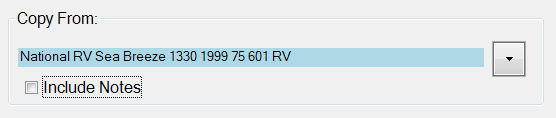
- Step 2: Click the 'Include Notes' checkbox if you also want any notes copied that you have entered on any of the scheduled tasks being copied. Otherwise, do not check the box and no notes will be copied.
- Step 3: Review the selections you have just made. If necessary, make any changes.
- Step 4: Click the Copy Now button to go ahead and copy the scheduled tasks. Or click the Quit button to leave without making any changes.

- Step 6: The copy process is done. A count is displayed of how many tasks were copied and how many were skipped because they were already posted to the Copy To vehicle. Click the DONE button to leave.
Next - If necessary, you can use the Schedule Maintenance screen or the Vehicle Profile screen to review or modify any of the tasks that were copied.