Contents
- Index
Search/Print
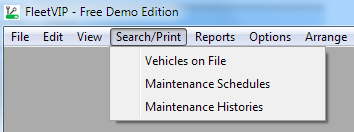
- The Search/Print feature allows you to select and print data from criteria you create.
- If you have the Pro version, you can also export your selected data to a spreadsheet-compatible CSV file.
- There are hundreds of search criteria you can create and print.
- You can also access result set records for changes or deletions to the database.
- Double-click in the upper box to start entering search criteria starting by indicating a column name from the box below.
- Or drag-and-drop individual column values from the lower box to the upper box to quickly create criteria statements. Then double-click on and edit any of the criteria statements if they are not exactly what you have in mind.
- Keep it simple while you experiment and learn. Then add more criteria statements if you need to.
- Click Apply to see your search result set in the box below.
- Click Print to print the results.
- Click Export to save the results to a comma-delimited file for use in a spreadsheet. (Pro version only.)
- Click Reset to start over.
Search/Print is an advanced feature that is especially useful for larger fleets. Hands-on experience is the best way to learn about it, so please experiment.
Since there are so many combinations you can use, some of them will not work. Try a different operator if that happens.
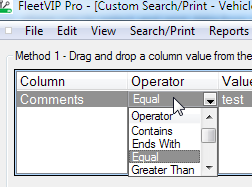
TIP: If you see an error message, double-click in the upper window under the Operator column heading. Then click the small arrow that appears to open the list of other operators and click a different one. See example above.
If you search on the comments or notes fields, do not use the Equal, Greater Than or Less Than operators. Use a different operator such as the Contains operator to avoid error messages.