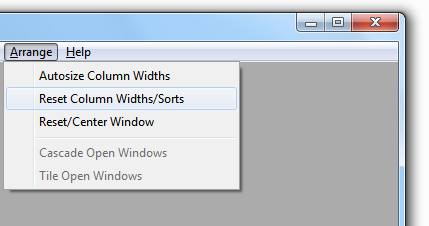
Arrange Menu
Scroll down or click on an option below to see more details:
Autosizing allows you to see the maximum amount of information on a scrolling window.
Click the autosize option to automatically adjust column widths for the window with focus. Autosize then adjusts column widths to the minimum needed to display the values on the current window. You may need to autosize again if you change tabs since then the values displayed will also change. Or if any of the values displayed are modified and change length, you may want to autosize again. Once the largest value in the database has been displayed in a column, that column should not need to change after it is autosized. On windows with an 'All Vehicles' tab, click that tab and then autosize and you will cover the bases in one click for that window.
If you still want to see more of the available columns displayed after autosizing, try maximizing the window.
Autosized column widths are saved when you close the window and used when you come back later.
Reset Column Widths/Sorts - If you want to undo autosizing or any column sizing changes you have made, click on Reset Column Widths/Sorts. The column widths for the window with focus will be reset to their default widths and default sort order.
Reset/Center Window - If you want to get a window back to the center of the main FleetVIP window and resize it to the original (default) size, the reset window feature is very handy. If no windows are open, then the main FleetVIP window is resized and centered.
Cascade Open Windows - If you have multiple windows opened, this can be a useful way to group them.
Tile Open Windows - This can also be a useful way to group multiple windows. If the result is too cluttered with this option, try maximizing the main window and then click the Tile option again.
For other tips on column sizing, sorting columns, locating a line item and pop-up menus see Getting Started.