Contents - Index - Previous - Next
Guided Set-up: Entering Most Recent Completion Dates
Once you have added one or more scheduled tasks, the next step is to post the most recent completion dates for each scheduled task.
FleetVIP uses the most recent completion date and Miles (or Km or Hours) to calculate future due dates for scheduled tasks.
Next you will enter at least one completed task with a more recent date than the acquisition date of the vehicle and greater Miles (or Km or Hours) than the initial miles entered when the vehicle was acquired.
Please make sure tasks completed on different dates do not have the exact same Miles/Km/Hours number posted on every date.
Now do this:
- Look at the line items under the Maintenance Schedule tab.
- Highlight (single-click) a task in the list that you want to enter a completion date for.
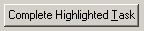
- Then click the Complete Highlighted Task button which looks like this:
A new screen appears for accepting the completion date and mileage when the task was completed. Enter the most recent completion date for each task. Hold the mouse over any button or entry field to see a pop-up help tip.
TIP: You can also use this button to add earlier completion dates for each task so you have a complete online maintenance history of all work done on your vehicle which is highly recommended.
Repeat the process to enter the most recent completion date for each scheduled task. Once you have done so, you are done with the Guided Set-Up process. You can always use the same buttons to add more scheduled tasks and completion dates.
Related Topic: Getting Started: Guided Set-Up Overview