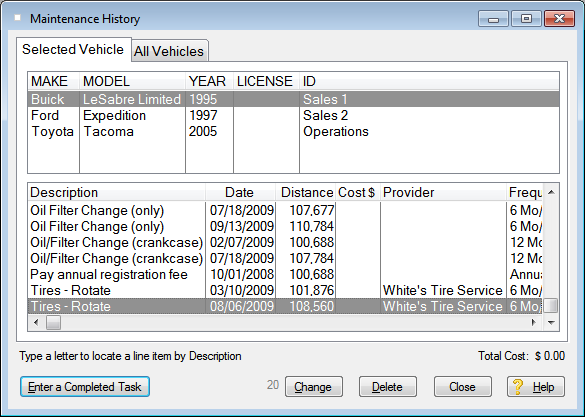
Entering maintenance history - Maintenance History is a record of all work that has been done. Usually, work completed matches up with a scheduled task. But sometimes work done is unscheduled, like fixing a flat tire!
From the View menu, select 'Display Maintenance History for all vehicles'. A list of vehicles appears:
Click a vehicle in the list and the history for that vehicle appears in the lower list. Select the vehicle you want to work with and click the 'Enter a Completed Task' button. The following entry form appears:
The the pop-up help tips and status bar messages provide context-sensitive messages as you TAB through and complete the fields on this form.
Fields you can enter:
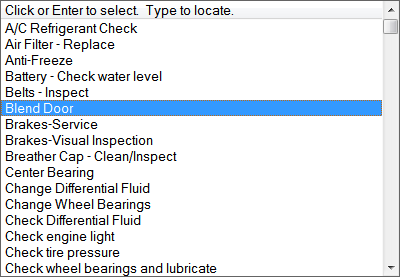
Description: (Required) Click the down arrow to see a list of descriptions or start typing a description and the closest match will appear.
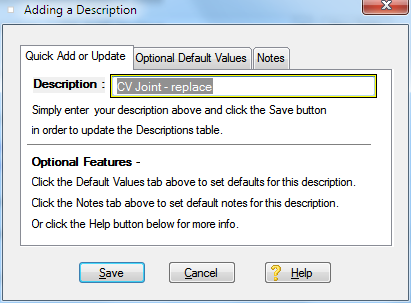
You can add a new description just by typing it. When you TAB away from the field, you will then be prompted to add the new description to the Descriptions and Defaults Table.
Last Completed: (Required) Type in the date or use the calendar button and the calendar pops up to select the date.
TIP: If you leave the date at zero and tab over to the calendar button, the calendar will automatically pop-up without having to click on it.


The arrows on the calendar pop-up their use if you hold the mouse over an arrow for a second. The inner arrows move by weeks, the middle arrows by months and the outer arrows by years. Once you see the date you want displayed, click on it.
If you type in a date instead of using the calendar, you can use shorthand date notation like 1.1.1 for Jan 1, 2001 or 10.12.5 for Oct 12, 2005. Or simply 6.6 for June 6th of the current year. Or type in the date using standard MM/DD/YYYY format.
Note: A date before you acquired the vehicle is permitted in case you want to enter work done by a previous owner.
Distance: (Required) The odometer reading when the task was completed. A message appears in the status bar and under the field indicating any limits to the distance you can enter.
Estimate distance when zero: The program can estimate the distance for you.

Just leave it at zero and check the box. If you use this feature, remember it is an estimate, so enter the actual distance once in awhile to keep the program honest! Once the box is checked, the preference is remembered and used whenever you enter a completed task.
Costs Tab: Use this tab to enter any costs you want to track for the work done.

Notes Tab: Use this tab to jot down any notes you want to keep about the work done on this date.
