
Checking for Program Updates
From the Help Menu, click Check for Updates and select either of the following two options shown below.
Select 'Check for Updates Now' to immediately check for updates.
Select Auto-Update Settings to indicate your preferences for automatically checking the website (www.alembx.com) for updates Then indicate whether you prefer either automatic checking or update reminders every so often.

If you tell FleetVIP to check automatically, it will do so every time the program closes if you are connected to the internet or if you are not connected but have automatic dial-up access configured on your computer. If an update is available, you can download it immediately.
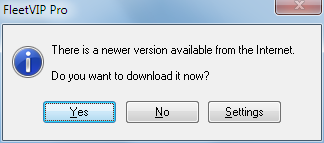
If you prefer to be reminded, then you will see a reminder screen first and will have time to connect to the internet before proceeding with the program update check. Or you can choose to skip the update check until the next reminder interval comes around.
If you run FleetVIP from a network or shared folder, all users may not have been granted permission by the system administrator to install a program update. In that scenario, you may want to be reminded periodically to check for updates and when FleetVIP tells you an update is available for download from the website, ask the system administrator to download and install the update. See the installation notes for more details.
Firewall notice: Some firewalls will display a warning message when a program tries to access the internet. When FleetVIP checks for updates, you may get a warning that a program named ' wupdate.exe' is trying to access the internet. Please tell your firewall to always allow this program to access the internet. Otherwise, you cannot check for updates.
File server or multi-user installations: See Installation Notes