Reports Menu
All reports create an online preview prior to printing. The preview shows the data that would print if you decide to print it.
While viewing the online preview, you may go ahead and print what you see, or select a specific page or pages to print, or cancel without printing anything. If you do print, the report goes to the printer already selected in Printer Setup under the File menu. To use a different printer, select a printer prior to running a report.
If you cancel a report preview without printing, there is a processing delay of 3-6 seconds per 100 report pages while the temporary preview files are removed.
While viewing a report preview, use the PageDown key to see the next page of the preview or select a page number in the toolbar at the top.
Scroll down for info on each reports menu option.
Print Vehicles on File - Click on it and the report preview window appears. After viewing the report preview, you can print or cancel.
Print Descriptions Table - Click on it and the report preview window appears. After viewing the report preview, you can print or cancel.
Print Service Providers Table - Click on it and the report preview window appears. After viewing the report preview, you can print or cancel.
Print Maintenance Schedule - Click on it and the setup window shown below with several report options appears. (The report now shows the current estimated hours (km, miles) for each vehicle based on today's date.)
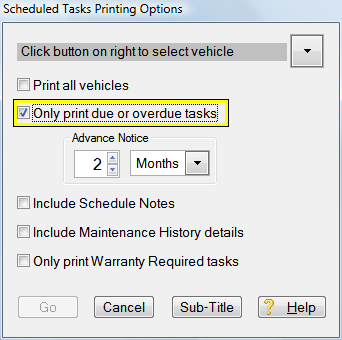 Click the checkbox to print all vehicles or click the down arrow to select just one specific vehicle from the dropdown list.
The checkboxes are optional and can be used in any combination.
Try them out then click GO and a report preview window appears for any combination of checkboxes.
You can then cancel the preview and modify your choices or send the preview results to the printer.
'Only print due or overdue tasks' is very useful to print a report of work needed now to take with you on visits to your service provider's shop.
'Include completion dates and distance history' is a great way to print the maintenance schedule plus the history of work done on each scheduled task. But no history will be printed for tasks that are not scheduled. Use the Print Maintenance History menu option to print a history of both scheduled and unscheduled work completed.
'Only print Warranty Required tasks' makes it easy to show you have met any warranty requirements. Any scheduled tasks where you have checked the Warranty Requirement check box will appear on this report.
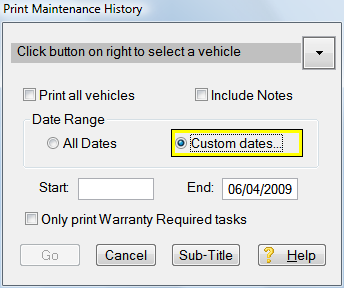
Print Maintenance History - Click on it and a setup window appears so you can print all vehicles or select one specific vehicle and indicate whether to print all service history or just warranty required history, whether to print all dates or a specific date range and whether to include notes you may have made on individual completed tasks.
If you are specifying a custom date range, you can also leave the Start date blank and just enter the end date to report all history up to the end date.
The Maintenance History report prints all work completed including both scheduled and unscheduled tasks.
After viewing the report preview, you can print or cancel.