Contents
- Index
- Previous
- Next
Update a Vehicle or Equipment Profile If you are adding a new profile, just fill in the white blanks for make, model, year, license and
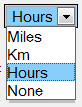 Distance Unit - Miles, Km, Hours or None - click the down arrow for choices. (See example on left.) Use 'None' for items where you do not want to track or enter miles, hours or kilometers. When using 'None', recurring scheduled tasks can only use fixed calendar intervals. Caution - If you select 'None' and then at a later date revert to using miles, hours or kilometers, you may have to re-enter completed tasks for that vehicle.
Date Acquired - click the calendar button to the right or use MM.DD.YYYY format.
Initial Miles/Km/Hours - enter a reasonable guess if you have to.
Notes tab for any notes you want to jot down about this particular vehicle or unit.
Fields with gray background are display-only.
(Scroll down for more tips.)

Please notice the status bar messages that appear at the bottom left of the program window. These messages provide ongoing help tips about the field you are entering or about the button or control that is currently selected. Here is a screen snippet that shows an example of a status bar message:
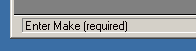
Also try holding the mouse (without clicking) over any button or entry field to see a pop-up help tip. (While you are reading this, you may need to click the FleetVIP window to give it 'focus' so the pop-up help tips appear.)
After entering a value, TAB to the next field. This is easier than using the mouse.
Display-only fields: Latest Miles/Km/Hours, As-Of Date, Current Annual Use and Est Current Miles are calculated by the program based on your most recent completion dates once you start entering maintenance history.
Once you have the blanks filled-in, click the Save button.
TIP: Once you have added a new vehicle profile, you can copy the maintenance schedule from another vehicle to save time. See the topic Copying a Maintenance Schedule for more details on this feature.
To change an existing vehicle profile - Notice this form includes three tabs for 1) Maintenance Schedule, 2) Completed Tasks and 3) Notes. Click any tab to display the related information.

Notice that all due and overdue tasks are highlighted in the due date column. You can click the Only show due/overdue tasks checkbox to see nothing but overdue tasks. You can set the overdue advance notice time under Options / Check or Configure Reminders / Configure Automatic Reminders.

To add a new scheduled task, click the 'Add Scheduled Task' button on the Maintenance Schedule tab shown above. An entry form appears to specify the scheduling details.
Click to view the form.
To complete a scheduled maintenance task, click on the task in the Maintenance Schedule list and then click the button titled 'Complete Highlighted Task' shown above. An entry form then appears and you can enter the date completed and the distance plus any costs and notes. (Click to view the form.)
To enter work done for an unscheduled task, click the Completed Tasks tab, then click on the 'Enter a Completed Task' button. An entry form then appears and you can enter the description, date completed and distance plus any costs and notes. (Click to view the form.)

For very useful navigation features, review the Getting Started topic.
To specify the date of manufacture, click on the Options menu and click on Display Date of Mfg. You must be viewing a vehicle profile for this menu option to appear. FleetVIP defaults to January 1 of the Year already entered as the date of manufacture. If you prefer a different date, then turn on this option. Long interval tasks that only occur every several years rely on the date of manufacture to calculate their first due date. You can make that due date more accurate if you enter the actual date of manufacture. Once enabled, an entry field for Date of Mfg appears in the upper right of the vehicle profile screen.
Related Topics:
Select a vehicle profile
Scheduled Maintenance
Entering maintenance history
Usage Calculation Options